Covers the 2.4 workflow on macOS. LUT Tools remains in beta. Analysis and export preparation are free; writing LUTs, ICC DeviceLinks, and their delivery reports requires PatternSpace Pro. No calibration-software connection or external display is needed for these file workflows. Not on a Mac? The free online LUT converter handles basic Cube, 3DL, and CSP conversions in your browser.
Start with your existing file
Open Tools → LUT Tools (Beta)…. Select Source, choose Existing LUT file under Start from, then drop your LUT or use Choose File…. Detection uses file contents; if asked, select the intended format. Read any import warnings.
For analysis or conversion alone, leave the path as Source → Export. You do not need to add an adjustment or another LUT. Imported files are never modified.
Analyze a LUT without exporting
- Select Source. Review the Analysis widget for sampled checks and neutral-axis curves.
- Open the Analysis window. Choose Open… or press ⌥⌘A. Overview summarizes range, monotonicity, neutrality, and channel interaction; Curves lets you inspect values and step through issues.
- Look beyond the grey axis. Slices shows changes across color planes, Points gives numerical samples, and Patterns evaluates familiar test patches through the LUT.
A reversal, out-of-range value, or neutral tint may be intentional in a creative look. A clean sampled check does not establish calibration accuracy. These views show RGB code values; preview swatches are not color-managed display measurements.
Convert LUT formats on Mac
- Select Export. Choose a format and grid supported by the receiving application. For example, convert a supported CLF into Cube 3D at the grid that application requires. Only compatible destinations are offered.
- Review preparation. PatternSpace encodes the output, reads it back, and verifies it before writing. Check warnings about omitted metadata, resampling, precision, and range. More grid points cannot recover information missing from the source.
- Choose Export… (⌘E). Save a separate file, then load it in the intended application and confirm its input/output encoding, range, and interpolation settings.
Changing the file format does not automatically convert between color spaces or signal ranges. For intentional transform changes, see the LUT chain editor guide.
Worked example: convert CLF to Cube at two grid sizes
The downloadable example starts with a synthetic 33³ CLF. Its red, green, and blue curves use powers of 2.2, 2.0, and 1.8 respectively over 0–1, giving a smooth nonlinear transform with no clipping. It is sample data for learning the workflow, not a measured display correction or a recommended look.
- Open the sample CLF. Download the 33³ source LUT and load it as Source. Leave the chain as Source → Export.
- Add two Cube outputs. Select Cube 3D, set the grid to 17³ and interpolation to Tetrahedral, then choose Add Output and change the new output’s grid to 33³. Both rows represent the same source transform at different grid sizes.
- Include a report and export. Turn on Include report, choose Export All…, and review both outcomes. Keep the report with the LUTs so the recipient can see what the smaller grid changed.
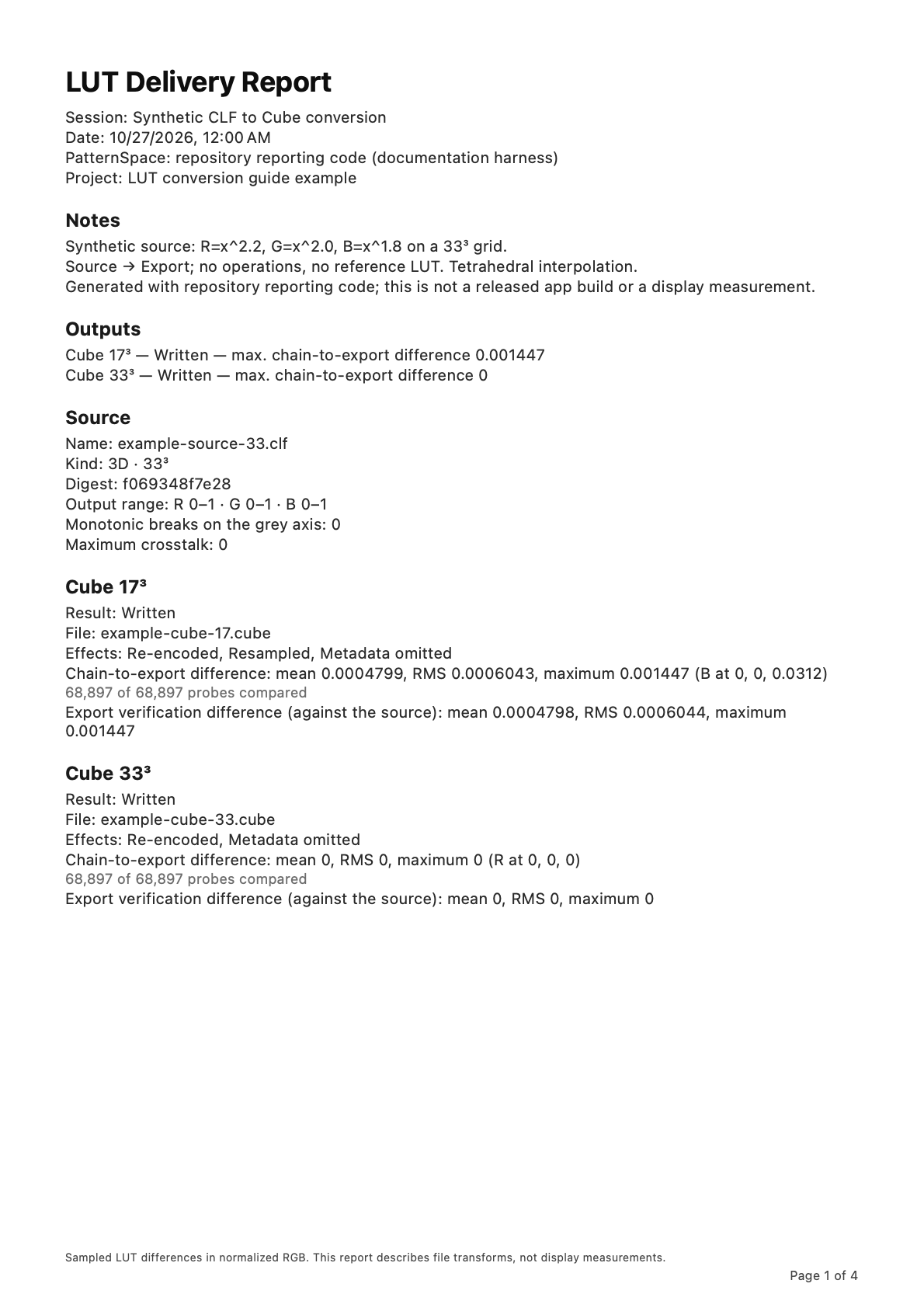
Compare your result with the generated 17³ Cube, 33³ Cube, and sample PDF delivery report. These files were generated with the repository’s conversion engine and the app’s PDF renderer. The report identifies this as synthetic example data.
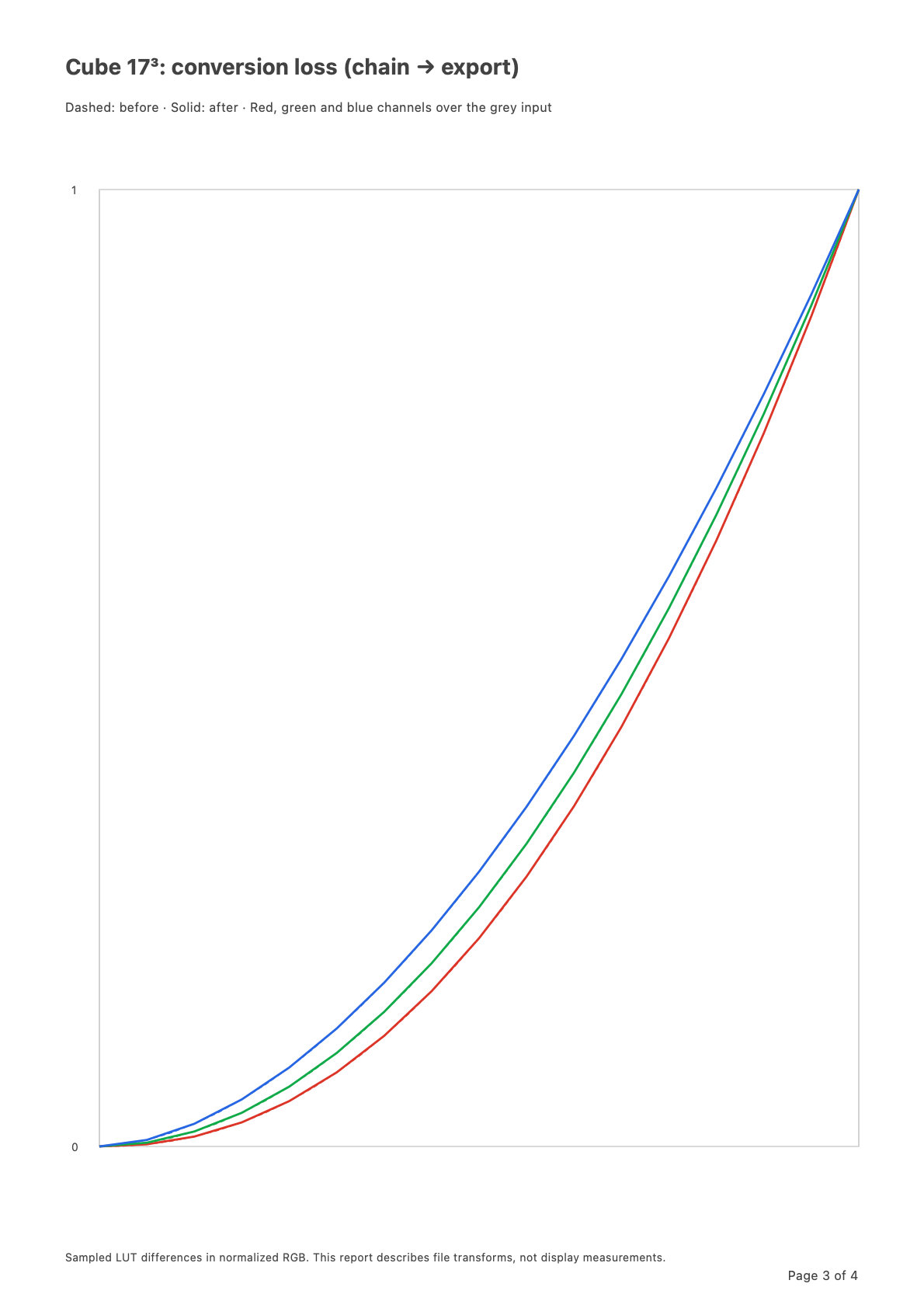
The smaller grid resamples the nonlinear curves; the 33³ output retains the source grid. Neither changes the declared purpose of the transform or turns it into a display profile. In this unchanged-source example, export verification uses the source as its baseline; read the report’s sampled figures rather than assuming that every format conversion is lossless.
| Cube grid | Chain-to-export difference | Export verification difference |
|---|---|---|
| 17³ | 0.001447 | 0.001447 |
| 33³ | 0 | 0 |
The chain-to-export check compared 68,897 unique probes for each output, with none rejected. Verification sampled 68,705 probes against the source. Both outputs report omitted metadata; the 17³ output also reports resampling. Zero sampled RGB difference for the 33³ output does not mean every feature of the CLF was preserved.
Batch export one LUT to multiple formats and grids
Export All… takes one source or chain to multiple destinations. It does not convert a folder of unrelated source files.
- Build the Outputs list. The Outputs list at the top of the Export inspector shows everything that will be written. Add Output copies the selected output’s LUT settings; select a row to set its format and grid: for example, Cube 3D at 33³ and 65³, plus CLF. Add ICC Profile adds one RGB→RGB DeviceLink using the current ICC settings. The limit is 16 outputs, including at most one ICC profile.
- Check names and warnings. File-name templates accept
{source},{variant},{size}, and{bits}. Duplicate names receive numbered suffixes; ICC files use the profile name. Incompatible rows show a warning and are skipped; remove any output you do not want written. - Choose Export All…. Every output in the list is prepared and verified before you choose one destination folder. An individual preparation failure does not stop the other outputs. Review any Replace confirmation; sources and the ICC base profile remain protected.
- Read Batch Export Results. Check each file’s outcome and quality warnings. Use Show in Finder to inspect the delivery folder.
Cancelling during preparation writes nothing. Cancelling during writing finishes the current file and cancels the remaining files. If the 512 MiB prepared-output limit is reached, use fewer or smaller outputs.
Include a PDF delivery report
Turn on Include report in the Export inspector. Fill in project, client, operator, and notes; choose report sections and optionally a reference LUT. The PDF records the source, chain, output outcomes, conversion effects, warnings, and grey-axis curves.
| Figure | What it tells you |
|---|---|
| Chain-to-export difference | Sampled differences between the chain and the decoded output, including conversion effects such as grid resampling, clipping, and quantization. |
| Export verification difference | Read-back differences against the stated baseline, which may already be a baked chain. A small verification figure can coexist with a larger chain-to-export difference. |
Figures are sampled differences in normalized RGB, not Lab ΔE or meter readings. Read the baseline, probe coverage, and warnings alongside the numbers. An optional reference comparison checks each written output against one reference LUT; incompatible dimensions are reported as not comparable.
For a single export, a second save dialog offers the PDF after the LUT is written; cancelling skips only the report. Export All places the PDF in the delivery folder and includes its name in overwrite confirmation. Save Report… in the results sheet can retry or save another copy. A report failure leaves already written LUTs intact.
Save the setup for the next delivery
Use File → Save (⌘S) to keep a .pslutchain session, then Open LUT Session… (⌘O) to reopen it. Sessions embed imported sources and retain chain settings, output rows, report fields, and the optional reference. Preparation and analysis are recomputed; you choose the batch destination folder again each run. Saving and reopening are free.
Sessions include source bytes, filenames, and original paths, so review what you are sharing. A session preserves the editable setup; exported files and the PDF form the delivery.
Check the destination’s requirements
Supported formats can still contain unsupported structures. ARRI ALF1, ALF2, and ALF4 are import-only. Review import and preparation warnings before assuming a conversion preserves every source feature.
ICC DeviceLink is an RGB→RGB transform for compatible software, baked at 33³. It is not a display profile to assign in macOS. For display-profile inspection and conversion workflows, see the ICC Profiles guide.
Exporting does not apply a LUT to display or DeckLink output. For chain editing and detailed format limits, use the LUT chain editor guide; see Pro access when you are ready to write files.